 Jenny Mod
What Works on iPhone and iPad?
If you are looking for Jenny Mod for iOS, start by checking your Minecraft edition. The original Java mod uses the Java modding system. Minecraft on iPhone and iPad uses Bedrock, which supports its own add-on packages. You need a package specifically made for that system and compatible with your game version.
A Jenny-themed Bedrock package can offer a skin, a custom entity, visual assets, or a combination of resources and behavior content. Read the included feature list carefully. A pack that changes a player’s appearance does a different job from one that adds an interactive companion to a world.
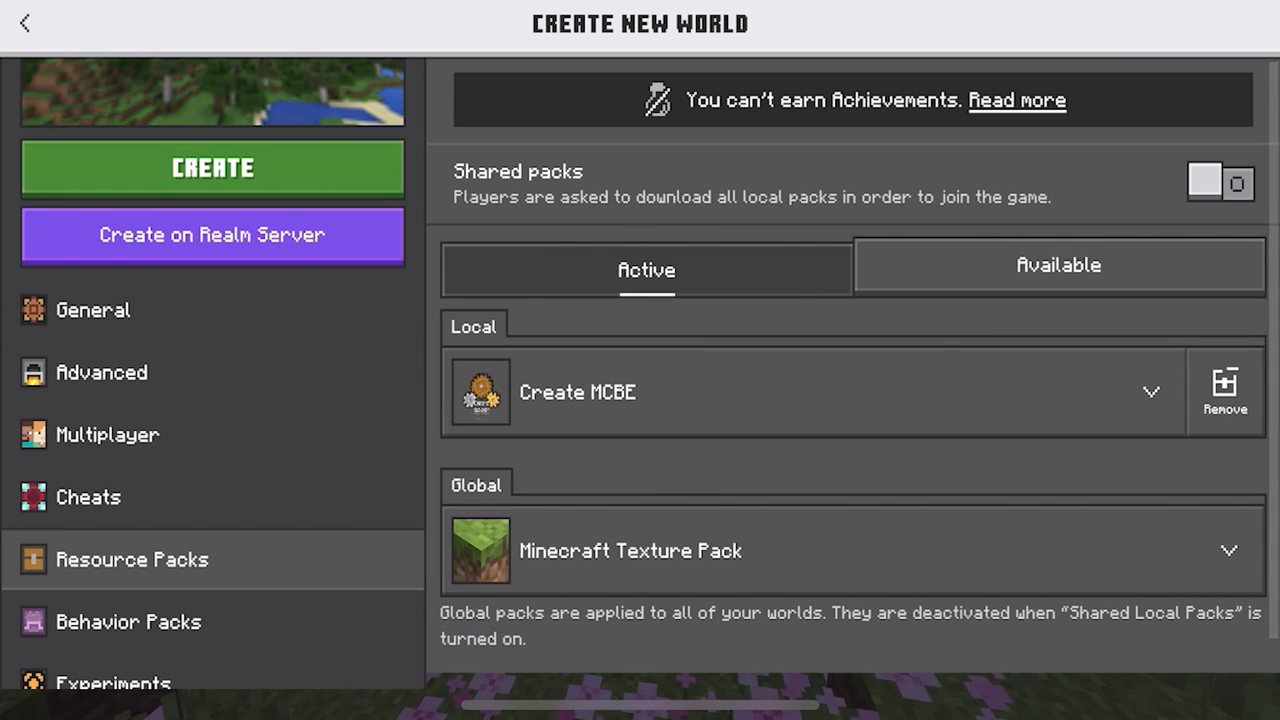
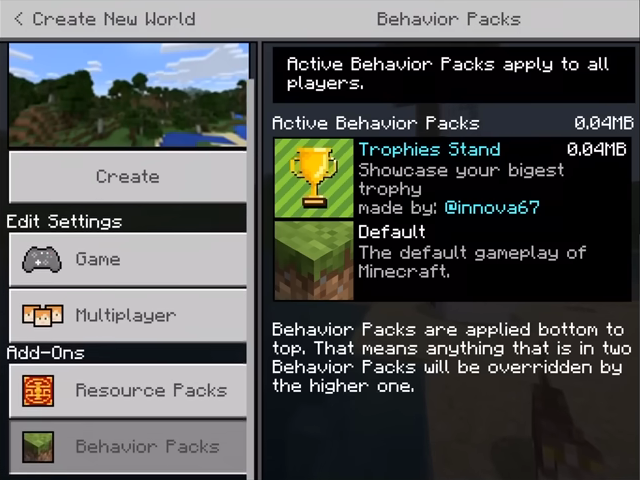
The images here explain the pack workflow. The first comes from a general Bedrock add-on tutorial, and the later iPad capture comes from an older tutorial. They help you recognize pack settings. They do not establish that a particular Jenny package works on your current iPhone.
Before You Start
- A working installation of Minecraft on your iPhone or iPad.
- A Bedrock package with a clearly identified release source.
- The game version and dependencies specified by that package.
- Space for the downloaded file and imported content.
- A separate world for your first test.
Look at the extension before opening the file. Bedrock packages commonly use .mcaddon or .mcpack. A Java .jar belongs to the Java setup, and an Android .apk belongs to Android. Renaming either file does not convert it into a Bedrock add-on.
There is no single version number that describes every Jenny-themed iOS package. Follow the version information attached to the actual download. If a page mentions several editions together, check which file and instructions apply to your device before you continue.
Import and Activate Your Pack
1. Save the add-on in Files
Download the compatible package and find it in Files. Safari commonly saves downloads to a Downloads folder, although your chosen location can differ. Keep the original filename so you can match it to the creator’s instructions. If the download ends unexpectedly, finish it before attempting the import.
Some releases provide more than one package. Keep the files from the same release together and read the instructions for their order or dependencies. Combining an older resource pack with a newer behavior pack can make a successful-looking import difficult to troubleshoot.
2. Open the file with Minecraft
Tap the package or open its share options and look for Minecraft. The available choices depend on the file and your device. If Minecraft is offered, open the package and wait for the import result. Note any error message exactly as it appears.
If the opening option is missing, check the extension, file size, and original download instructions. A web page saved with a package-like filename will not become an add-on. Return to the release source and check that you obtained the intended file.
3. Activate the required world packs
Open Minecraft and prepare a test world. In its settings, check Resource Packs and Behavior Packs for the imported components. Activate the pieces required by the release. Importing adds the package to Minecraft, while activating applies the supported content to that world.
Some packages request additional settings. Read those requirements before changing anything. The available options vary between Minecraft versions, so an old video may show labels that differ from your screen. The creator’s current instructions should explain the settings needed by the package you downloaded.
4. Test the content in your world
Enter the world and use the package’s documented method to find its content. A character add-on may provide a spawn item, while a skin pack may appear through character customization. Check what your download is meant to add before searching for an entity that it does not include.
Test the basic result first. Look for correct textures, the expected item or character, and any documented interaction. Once that works, you can evaluate whether it fits the world you want to play. Keep a backup before applying unfamiliar content to a save you care about.
If the Add-On Does Not Appear
| What you see | What to check |
|---|---|
| Minecraft will not open the file | Confirm the extension and download the complete package. |
| Import succeeds, content is missing | Check the world’s active resource and behavior packs. |
| A dependency warning appears | Read the release’s required component list. |
| The character has missing textures | Check the matching resource pack and game version. |
If the game becomes unstable, return to your test world configuration and remove the last unfamiliar component. Check whether the game works with that package disabled. Keep a note of the Minecraft version, package version, and exact error before asking the creator for help.
A video can show that a setup worked at the time it was recorded, but mobile Minecraft changes over time. Check the date and package version when following an older guide. An outdated menu label alone does not mean your device is broken.
Choosing a useful download source
Look for a named creator, release notes, supported versions, and a clear explanation of the files. A package should have enough information for you to understand what you are importing. An unrelated app subscription or installer step deserves a separate review before you commit to it.
Standard Bedrock pack imports work through Minecraft’s content system. If a page sends you toward device-management profiles or a jailbreak as a required import step, return to the package documentation and verify that claim. Keep the installation focused on the files your chosen add-on needs.
iPhone and iPad Questions
Can I use the original Java file on iPhone?
The Java mod requires a Java environment and its compatible loader. Use a documented Bedrock package for the iPhone or iPad version of Minecraft.
Does every add-on have the same features?
Features depend on the package. Compare the included characters, resources, and behavior content with its release notes.
Will the same package work on iPad?
Check its supported Minecraft versions and device requirements. Screen size alone does not determine compatibility.
For the edition comparison, return to the homepage guide. You can also review Minecraft’s add-on activation instructions when checking the pack workflow.