 Jenny Mod
 Guides
Jenny Mod Animations
Character movement depends on the build you install. Here’s how to understand what you’re seeing and check the animation support in your own setup.
What Can Change Between Builds?
Jenny Mod animations are part of a particular character implementation. What you see depends on the model, the animation data, and the code or behavior that selects an action. Two downloads with similar names can use different versions of those pieces, which is why one video may show movement that your setup does not provide.
Begin with the package’s supported features. Look for its Minecraft edition, game version, release notes, and required components. A shader or texture pack can change how a scene looks, but that alone does not establish which character actions are available.
| Part | What it does |
|---|---|
| Model | Defines the shape and parts of the character. |
| Animation data | Describes how those parts move over time. |
| Controller or behavior | Selects when an animation should play. |
A different outfit can still use the same movements. Likewise, a familiar-looking character can have a different set of supported actions in another fork. Compare the release and its demonstration rather than using appearance as the only guide.
Look for a complete demonstration
When you review a clip, watch how the action starts and ends. Does it begin when the player moves, uses an item, or selects something in a menu? Does the creator identify the build? Those details are more useful for your setup than a short isolated pose with no context.
Keep your first test focused on ordinary movement and the documented controls. If the character loads correctly, you can check whether it changes pose during the actions supported by your release. Avoid assuming that a feature exists because another community version includes it.
Compare Poses in Gameplay
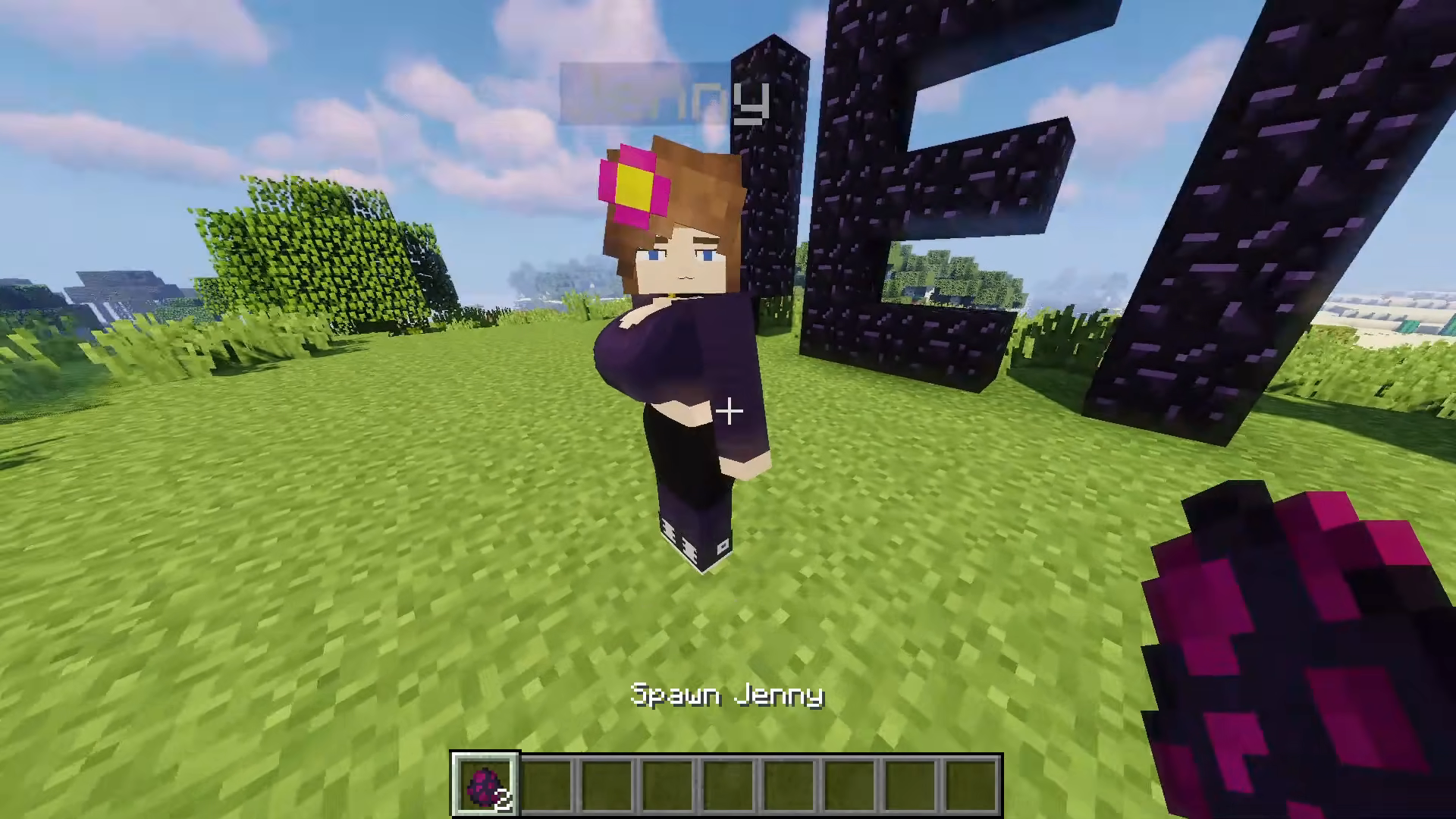
The two captures on this page come from the same Java tutorial at 2:27 and 2:29. They show Jenny at different moments in the sequence. They are useful visual references for the character and scene, while the linked video lets you inspect the movement between those moments.
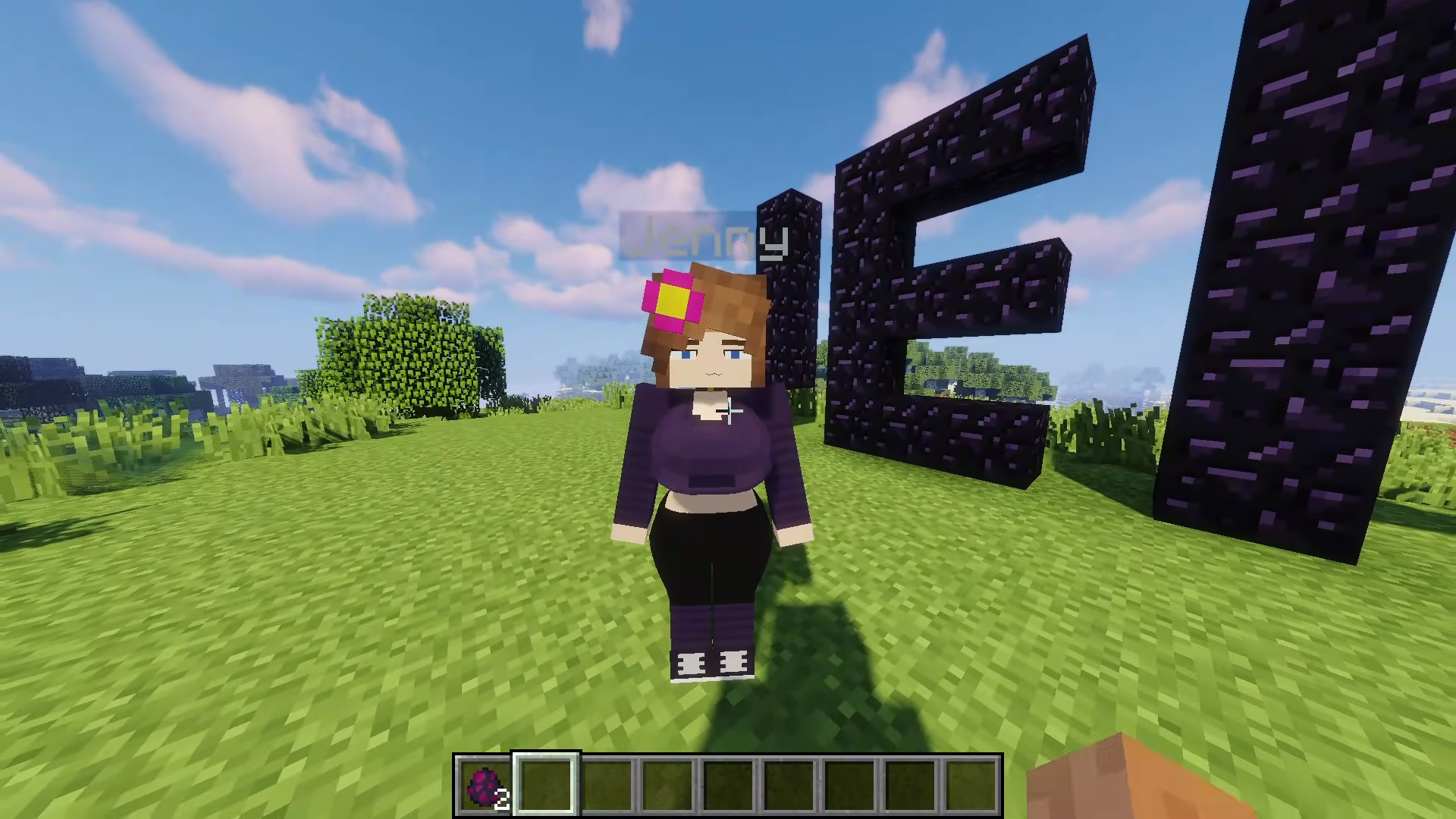
A screenshot records one instant. If you want to demonstrate a walk cycle, an idle loop, or a reaction, include enough video to show the transition. A pair of stills can help compare poses, but it cannot tell you the timing, the complete trigger, or whether a movement loops.
Camera movement can also change how a pose looks. The player may turn, step sideways, or change their distance from the character. When comparing clips, look at the character’s limbs and orientation alongside the camera position, rather than treating every visual difference as a new animation.
How to Check Animation Support
- Confirm that the character loads. Start in a separate test world with the correct profile or active packs. Check that the model and textures appear.
- Read the release instructions. Find the supported actions and controls for that build. Keep Java instructions with Java releases and Bedrock instructions with the matching add-on.
- Try one documented action. Watch what changes and whether a menu, item, or movement starts it. Give the sequence time to finish before repeating the action.
- Check the required components. If the model appears but behavior is missing, compare your installed files with the release’s dependency list.
- Record the result. Note the package version, character, and action you tried. A short clip and an exact error message can help the creator understand the problem.
On Java, a clean profile can help you isolate conflicting mods. Add the required files first, confirm the basic result, and then reintroduce other mods individually. If a problem starts after one addition, you have a more specific change to investigate.
For Bedrock, check the components applied to the world. Resource packs can provide models and textures, while behavior content determines supported entity behavior. Use matching components from the same release when the creator supplies them separately.
If your character stays still
First check whether the action you are trying is included. A limited adaptation may have a smaller feature set. Then confirm that the character is the correct entity and that you are using the documented interaction. A decorative model or skin may be behaving exactly as its creator intended.
If movement stopped after a game update, compare the add-on’s supported version with your installed Minecraft version. Keep a working backup before changing packages. For a Java crash or loading error, read the relevant log message rather than repeatedly replacing files without a specific reason.
PNG, GIF, or Video?
| Format | Useful for | What to remember |
|---|---|---|
| PNG | A clear still pose or interface screenshot. | One image cannot show movement over time. |
| GIF | A short repeating visual sequence. | Color quality and file size can be limiting. |
| Video | A complete action with timing and context. | Include the trigger and enough of the ending. |
If you record a demonstration, begin a moment before the action. Keep the character and any relevant controls visible. A caption can identify the edition, game version, character, and package release without covering the gameplay itself. That gives viewers a fair way to compare their own setup.
For a website image, keep the original capture alongside the presentation version. Decorative framing can match the page design while the screenshot keeps its real interface and character details. If you crop a frame, preserve the controls needed to understand the step.
Reading animation claims in a guide
Separate what a source demonstrates from what its description promises. A title may mention several features even when the video shows only a few. Look for a specific timestamp, a recognizable build, and a visible trigger when you want to verify one action.
Be careful with comparisons across platforms. A Java showcase and a Bedrock add-on can share a character name while using different models or behavior systems. Use the edition comparison to identify your setup, then follow the relevant release instructions.
Animation Questions
Can a screenshot show a complete animation?
A screenshot shows a single pose. Watch the source video to see movement, timing, and transitions.
Why does my character stay still?
Check the supported action, required files, edition, and package version. A model loading successfully does not establish that every action from another release is included.
Will changing a skin add new movements?
A texture changes appearance. Additional movement requires compatible animation data and behavior support.
If the mod itself is missing, start with the PC installation guide. If only one companion is absent, check the character roster guide before changing your setup.